
About Blue Iris

Reviewed byBernadine WisokyContent Editor
Blue Iris is a video monitoring app that connects Android phones to Blue Iris security camera software.
Blue Iris is made for users who already manage cameras through the Blue Iris software on a Windows PC and need phone access while away from that computer. It helps you check a home, shop, office, family area, car, or other important place from one mobile screen. Instead of connecting every camera directly to the Internet, the Blue Iris APK works as a companion client that reaches the camera system through the Blue Iris PC setup.
Key Blue Iris Features
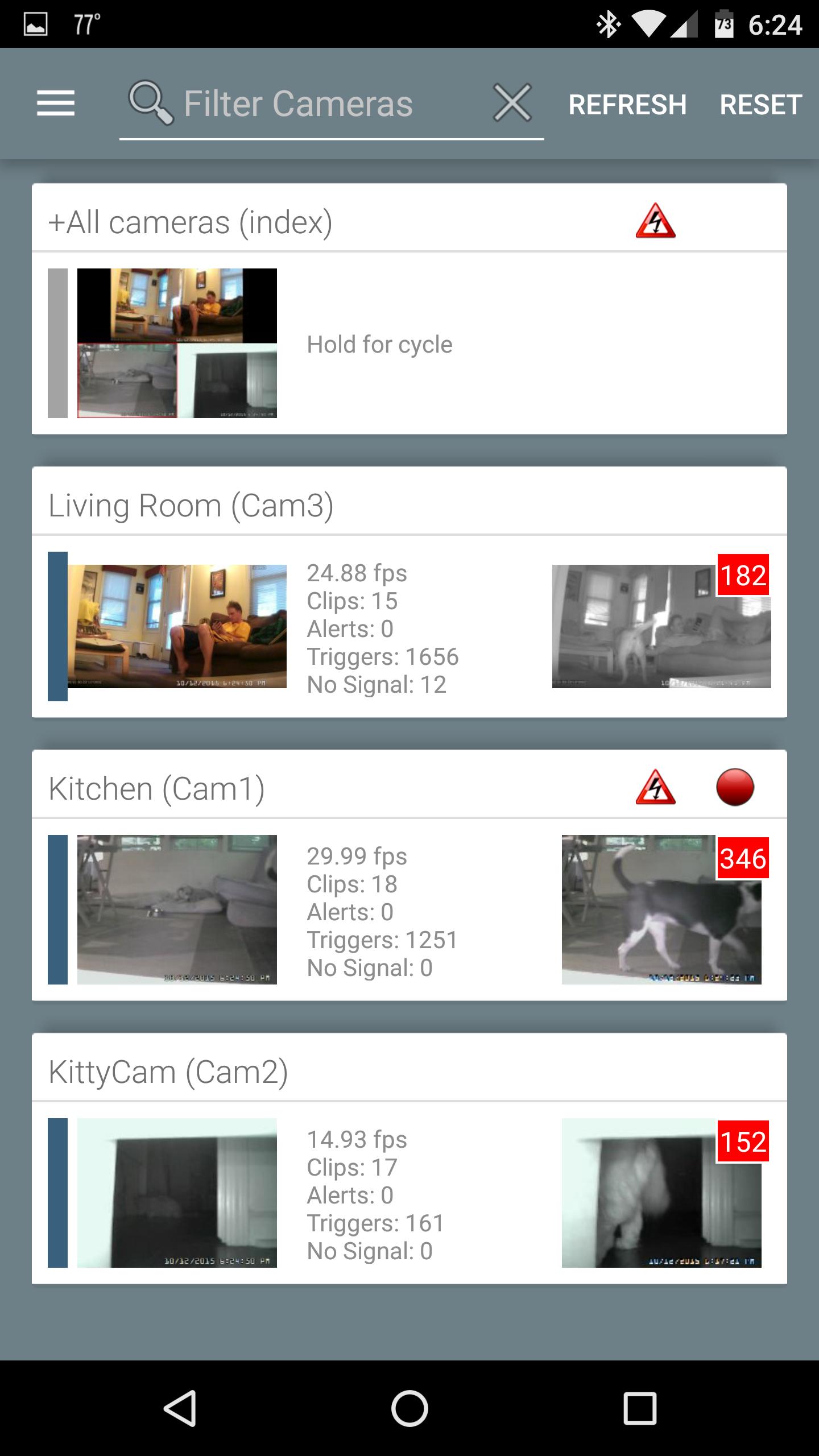
Central access to your camera network
Blue Iris gives you one mobile entry point for cameras that are already connected to the Blue Iris PC software. This matters when you manage several cameras and do not want to open each camera to outside access. Through a secure session based connection, you can reach the system from your Android phone while keeping the main camera setup managed on the PC.
Live viewing and recorded playback
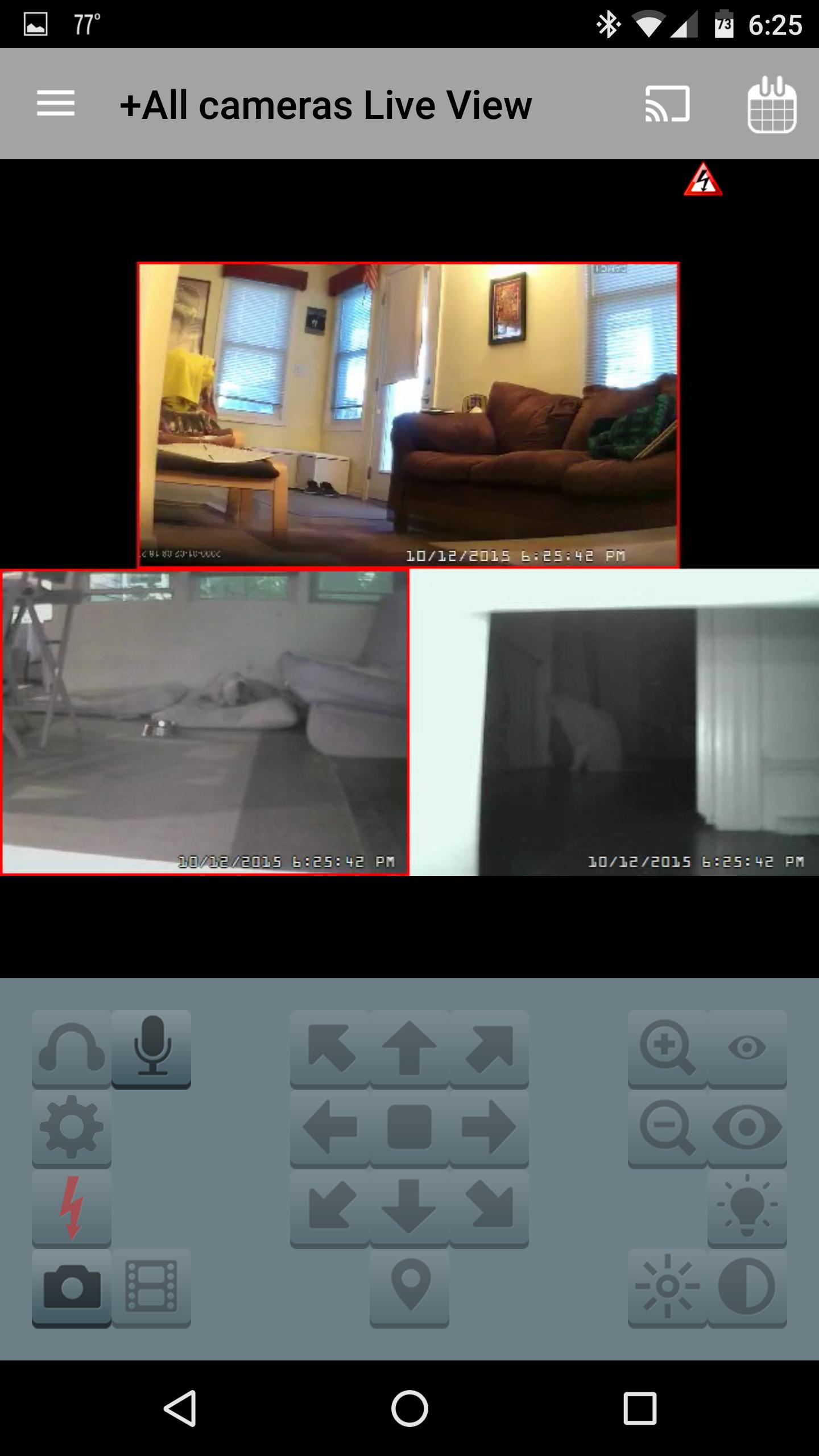
Blue Iris lets you watch live video from cameras linked to the Windows software. When you need to check an earlier event, you can also play recorded video stored on the Blue Iris PC. Fast H.264 streaming is supported, so the app is designed for viewing video on a mobile connection when the server setup allows it.
Push alerts for camera activity
You can receive Android push alerts when cameras are triggered or when important Blue Iris status messages appear. This helps users who rely on the Blue Iris mobile app for motion events, security checks, or system notices. After an alert arrives, you can open the app and review the related camera view or recording from the connected PC system.
Multiple Blue Iris installations
Blue Iris can manage more than one Blue Iris installation from the same Android app. This is useful if you monitor separate locations, such as a home and a business. Instead of switching between unrelated camera tools, you can keep different Blue Iris PC setups available inside one mobile client.
Camera controls when supported
You can use camera controls such as PTZ movement, infrared control, digital navigation, listening, talking, and DIO output control when the camera and Blue Iris PC configuration support them. These controls depend on how each camera is set up in the desktop software. As a result, the available buttons may differ from one camera to another.
Recording review and file actions
Blue Iris also supports review tools for recordings kept on the Blue Iris PC. You can navigate through clips, speed play footage, and delete selected recordings when needed. This gives you a practical way to check saved events from an Android phone without sitting at the computer that runs the camera software.
What to Know About Blue Iris Before Downloading
Blue Iris is not a standalone camera setup app. It is a companion app for users who already run the Blue Iris video security and webcam software on a Windows PC. Before you download Blue Iris, make sure the main Blue Iris system is installed, configured, and able to reach the cameras you want to monitor.
The app experience depends on the Blue Iris PC setup and the camera features already configured there. For example, PTZ, audio, infrared, and DIO controls only appear or work when the camera and server settings support them. If a camera does not behave consistently on Android, checking the desktop Blue Iris configuration is an important first step.
Blue Iris Notifications and Remote Access
Many users look at the Blue Iris Android app because mobile alerts are central to remote monitoring. The app can send push notifications for camera triggers and critical status messages, which helps you respond to activity without keeping the live view open all day. Notification behavior still depends on the alert rules and camera triggers set inside the Blue Iris PC software.
Remote access is also a key reason to use the Blue Iris mobile app. Since the phone connects to the Blue Iris system rather than each individual camera, users can monitor homes, businesses, family spaces, vehicles, and valuables from a single app view. This setup keeps camera access organized around the main Blue Iris installation.
How to Use Blue Iris on Android
Blue Iris works best after the Windows PC software is already running and your cameras are available there. After installing the Blue Iris latest version on Android, use the app as a mobile extension of that existing camera system rather than as a new camera manager.
- Open Blue Iris on your Android phone and prepare the connection details for the Blue Iris PC system you want to access.
- Add the Blue Iris installation in the app, then sign in through the secure session based connection used by your server setup.
- Select the camera or camera group you want to view, then check the live video feed from the connected Blue Iris PC.
- When an alert arrives, open the related camera view and review the recording or status message tied to that event.
- If your camera supports extra controls, use PTZ, audio, infrared, digital navigation, or output controls directly from the mobile screen.
Get Started with Blue Iris
Blue Iris is a practical Android companion for users who already depend on the Blue Iris Windows PC software for camera monitoring, alerts, and recorded video access. Users who need mobile access to an existing camera system can use Blue Iris download options on APKPure to install the app and manage supported Blue Iris functions from a phone.
Official information is available from the developer website:
- Website: https://blueirissoftware.com/
Additional APP Information
Latest Version
3.0.46Requires Android
8.0
Category
Video Players & Editors AppContent Rating
Everyone
Report
Flag as inappropriateWhat's New in the Latest Version 3.0.46
Last updated on Sep 17, 2024
Minor bug fixes and improvements. Install or update to the newest version to check it out!
Blue Iris Screenshots