




About Developer Options

Reviewed byBernadine WisokyContent Editor
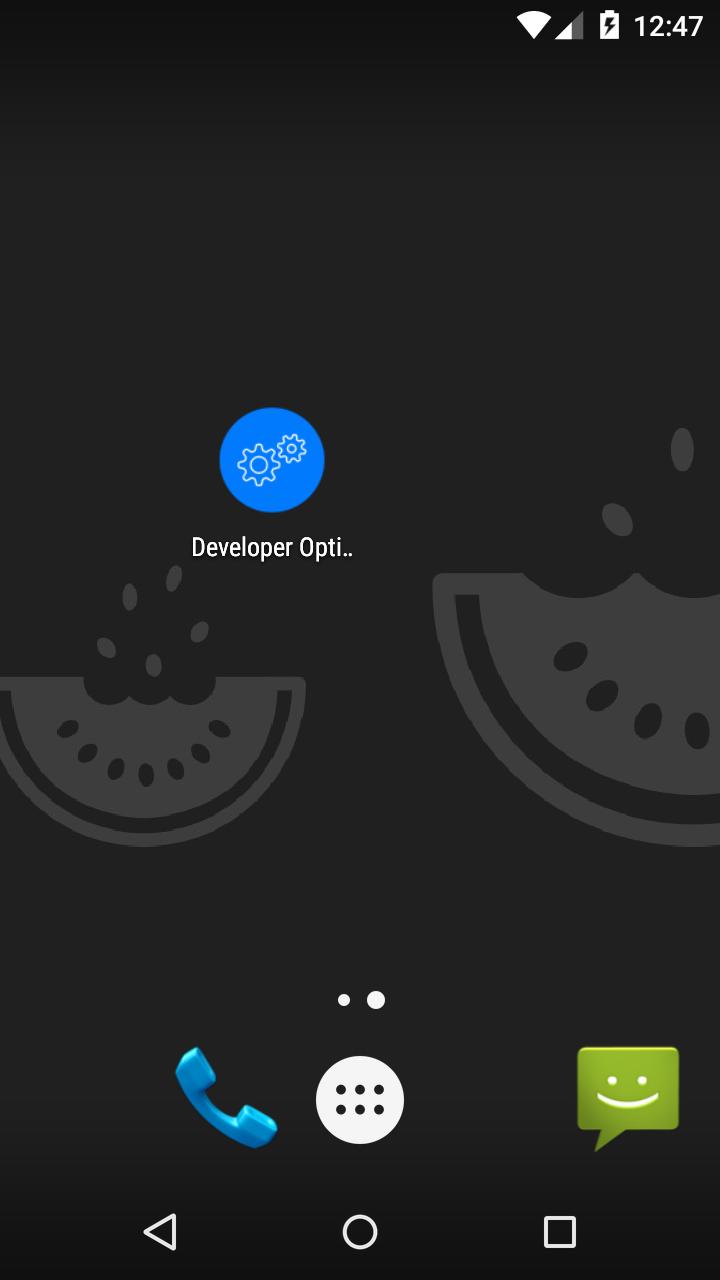
Developer Options is a utility app that opens Android’s Developer options menu instantly.
Developer Options helps users reach Android’s hidden developer tools without digging through Settings. It is useful when testing apps, debugging connections, or checking performance tweaks during day‑to‑day work. Instead of tapping multiple screens, you jump straight to the system menu and make the changes you need. For convenience, users who prefer sideloading can find the Developer Options APK, and then launch this shortcut whenever a tool is required.
Fast access to key developer tools
Instant entry to Developer optionsDeveloper Options provides a one tap shortcut to the system Developer options screen. You open the menu directly without navigating through Settings. There is no root required. This saves time for developers, testers, and power users when switching between tools.
Disable mock locations quicklyYou can reach the setting that controls mock locations in a few seconds. When games show “location not found,” open Developer options and set “Select mock location app” to None. This clears fake GPS sources so location checks work again. It helps users avoid long searches through Settings.
Reach debugging controls without diggingDeveloper Options puts USB debugging, Wireless debugging, and bug report tools within easy reach. After opening the menu, you can enable or review these controls as needed. Quick settings developer tiles are also accessible from the same area. This keeps common Android Developer Options in one place during testing.
Adjust animation scales for testingYou can change Window and Transition animation scales to see how the UI responds. Lower values shorten animation time and speed up navigation during tests. Higher values can help visualize transitions more clearly. Switch settings for specific sessions, then revert them when finished.
Open visual debugging aidsDeveloper Options provides a fast path to GPU rendering, color space simulation, and layout bounds tools. These controls help inspect drawing behavior and layout structure. You can turn a tool on, verify a screen, and turn it off right away. This supports focused visual debugging without extra steps.
Before you use Developer Options
Use Developer options cautiously and only when you understand a setting. This shortcut does not change any setting automatically; it only opens the system menu. Turn off risky controls, especially USB debugging, when you no longer need them. Keeping unnecessary debugging features enabled can affect security and app behavior.
Known compatibility note
Some users report that enabling Developer options may affect NFC or tap to pay in certain apps, such as Square POS. If contactless payments stop working, turn off Developer options and test again. Device models and app versions vary, so review your setup after changes to developer mode.
Where to find Build number on your device
- Google Pixel: Settings > About phone > Build number.
- Samsung: Settings > About phone > Software information > Build number.
- OnePlus: Settings > About phone > Build number.
To turn off Developer options, open Settings > System > Developer options and toggle Off. The exact wording may vary by device, but the path is similar across brands.
Fix “location not found” using Developer Options
When an app or game shows “location not found,” open the shortcut, go to Debugging, and ensure “Select mock location app” is set to None. Removing the mock source helps restore normal location checks. This is a quick way to clear fake GPS settings without browsing multiple screens.
How to use Developer Options on Android
After installing the Developer Options latest version, use the shortcut whenever you need the system developer menu. You can enable the menu first if it is hidden, then return to the app to open it quickly.
- Open Developer Options to jump straight to the system Developer options screen.
- If the menu is not yet enabled, go to Settings > About phone and tap Build number seven times, then return.
- To fix location errors, open Debugging and set “Select mock location app” to None.
- For performance tests, adjust Window and Transition animation scale values and observe UI behavior.
- When finished, review settings and turn off USB debugging or other options you do not need.
Start with Developer Options
Developer Options offers a direct path to Android’s Developer options for faster testing and debugging. It helps users reach key tools without extra navigation. To begin, download Developer Options and open the shortcut whenever the developer menu is needed.
Additional APP Information
Latest Version
1.058Uploaded by
Tấn Thành
Requires Android
Android 4.0+
Category
Free Tools AppContent Rating
Everyone
Report
Flag as inappropriateWhat's New in the Latest Version 1.058
Last updated on Feb 23, 2019
Added basic device info
Developer Options Screenshots


Old Versions of Developer Options
All Versions
Related Tags




















All ReviewsAdd Reviews